
Authentication with Entra ID
Getting started
Entra ID – A Microsoft cloud product that enables users to enter any application or resource with their own company ID
Note: Depending on your internal corporate IT rules, you may need to enter your email and the confirmation information (password, code, etc.) before you proceed with set up the two-factor authorisation for CoOper8.
Two-factor authentication
Alternative steps
You can set up your two-factor authentication by using the Microsoft Authenticator app or select SMS as your preferred authentication method.
Alternative 1 – Microsoft Authenticator
- To use the Microsoft Authenticator app, you need to download it to your smartphone if you do not already have it.
Click “Next” to set up your account.
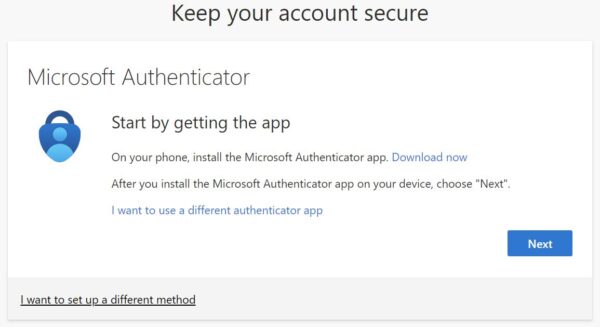
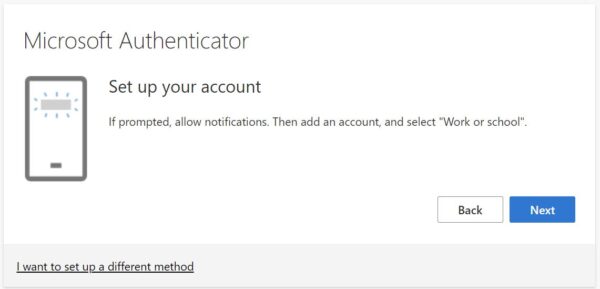
- Open the Authenticator app on your phone and select “ + ” to add the account.
Click “Next” in your computer screen.
- Click “Scan QR code” in the app on your phone and scan the QR code that appears in your computer screen.
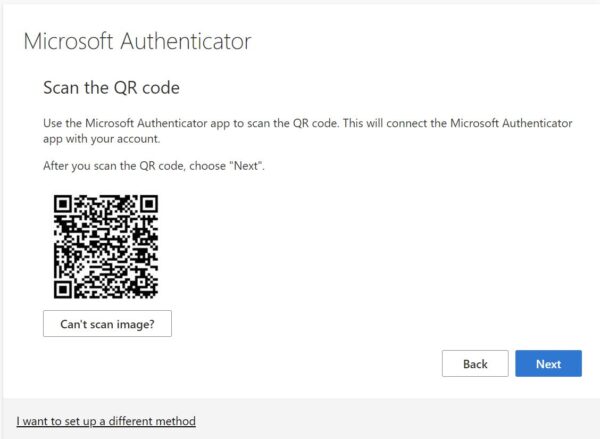
- Click “Next”. A notification is sent to your Authenticator app.
- Approve the notification. You may need to enter the number shown on your computer screen.
Alternative 2 – SMS
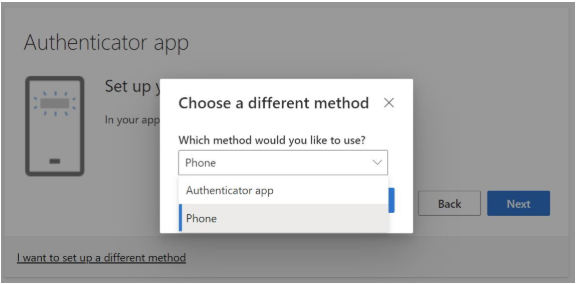
- Select “I want to set up a different method”.
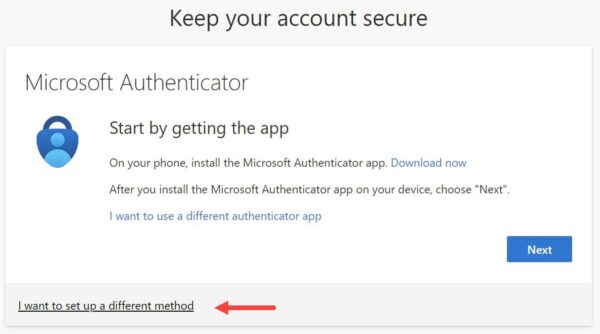
- Select “Phone”, then click “Confirm”.
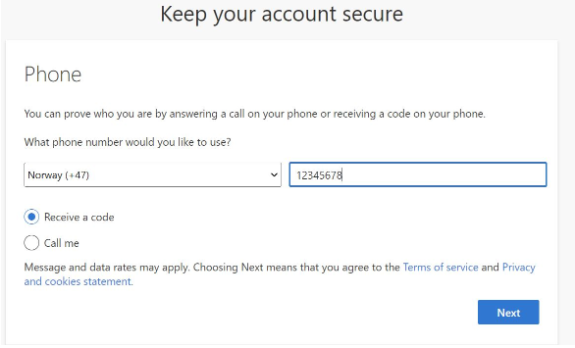
- Select your country code, enter your phone number, then click “Next”.
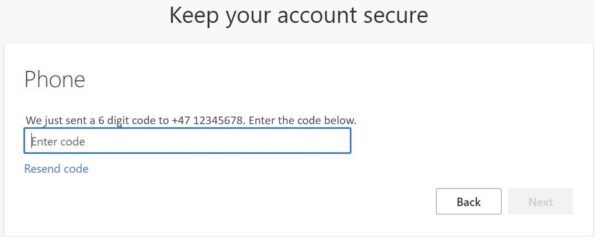
- Enter the code that was sent to your phone, then click “Next”.
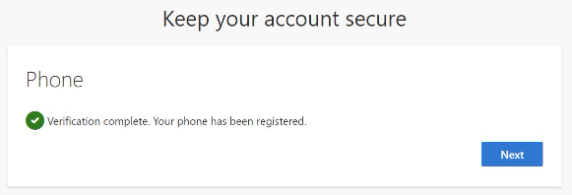
- Click “Next” to complete your registration.
Login
How to log in
- Navigate to the login page of the service that you want to log into.
- You will be redirected to the Microsoft login page.
- Enter your email address or select the correct account.
- Go through two-factor authentication using the method you registered with initially, Microsoft Authenticator or SMS method.